Oninsta
Many users are tired of missing important Instagram updates because their notification sound blends in with the background noise. Don’t ignore this issue; default tones can cause you to overlook messages, story replies, or time-sensitive posts.
You need this guide to take control of your alerts by knowing “How to change the Instagram notification sound?”. So, your phone speaks your style and gets your attention when it matters most. Avoid the frustration and never miss an important update again.
How to Change Instagram Notification Sound on Android?
If you want to change the Instagram notification sound on your Android device, several easy methods are available.
Depending on your phone and settings, you can update the notification tone through the app, your phone’s system settings, or by using the app icon shortcut.
o Change via Instagram Notification Settings (Device Dependent)
Some Android phones, particularly Samsung models, let you personalize Instagram sounds directly within the app. This makes it quick and convenient without requiring you to dive into system settings.
- Open Instagram and tap your Profile at the bottom-right.
- Tap the Menu (three horizontal lines).
- Go to Notifications.
- Top Posts, Stories, and Comments.
- Scroll down and tap “Additional options” in System Settings.
- If needed, toggle Allow Notifications ON.
- Select Notification Categories.
- Choose a category (like Instagram Direct).
- Tap Sound and pick a ringtone or notification tone from your device.
- Note: Some devices may show Default Notification Sound directly; tap to change it.
o Change Through Android System Settings
Most Android devices allow you to change Instagram notification sound from system settings. You can also assign different sounds for specific apps or actions, such as DMs or likes.
- Open Settings > Apps.
- Tap Manage Apps or search for Instagram.
- Tap Notifications.
- Select the type of notification (such as messages).
- Tap Sound to select a different tone.
- Tip: Use this same process to customize notifications for other apps.
o Using the Instagram App Icon to Change Notification Sounds
You can long-press the app icon on Android to access app settings, including notification options, quickly. This method doesn’t apply to iOS (iPhone/iPad), where app settings are accessed differently through the main Settings app.
- Press and hold the Instagram app icon on your device’s home screen.
- When a menu appears, tap App info.
- Select Notification categories.
- Choose the specific notification category for which you want to customize the Sound.
- Alternatively, you can select All notifications to adjust the Sound for every Instagram alert.
- Tap Sound or Ringtone to pick a new notification sound.
- Choose the Sound you prefer from the available options.
How to Change Instagram Notification Sound on iPhone? (iOS 17.2+)
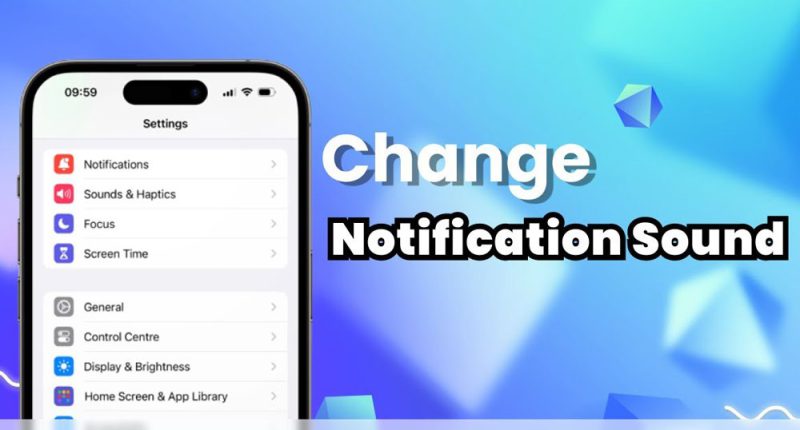
iOS doesn’t allow custom tones for individual apps. When you change the default notification sound, it affects all apps system-wide. If your iPhone or iPad is running iOS 17.2 or later, you can follow these steps:
- Go to Settings > Sounds & Haptics.
- Tap Default Alerts.
- Choose a new tone from the list. This tone will now be applied to all app notifications, including Instagram.
- Note: This feature may not be available on iOS versions earlier than 17.2. You’ll need to update your device software.
How to Adjust Instagram Notification Sounds via Phone Settings? (iOS & Android)
You can also adjust Instagram alert settings directly through your phone’s Settings app. The steps differ depending on whether you have an iOS or Android device:
For iOS (iPhone, iPad):
- Open the Settings
- Tap Sounds.
- Under Sounds and Vibration Patterns, tap Text Tone.
- Select your desired notification tone from the list.
For Android:
- Open Settings.
- Tap Notifications.
- Scroll through your apps and tap Instagram.
- Select Instagram’s Notifications.
- If you don’t see the notification categories immediately, scroll and tap ‘Notification categories.’
- Select the category you want to change or choose ‘All notifications‘ to update all Instagram notification sounds.
- Tap “Sound” or “Ringtone” to select a new alert sound.
How to Create a Custom Notification Sound (iOS & Android)?
To change your Instagram notification sound, you can use a recording or music clip by creating your audio and setting it manually, either through iTunes (for iOS) or directly on Android.
· Use Third-party Tools for Instagram Sounds
If you’re unsatisfied with the standard ringtones or alert sounds, you can make your own using tools like EaseUS RecExperts.
- Why Use EaseUS RecExperts?
- Record high-quality audio from your mic, system, or external devices.
- Edit or trim the Sound to your liking.
- Export and use the Sound as a custom ringtone on Android or iPhone.
- Steps to Record Custom Notification Sound:
- Launch EaseUS RecExperts and select Audio Mode.
- Choose the input source, microphone, system sound, or both.
- Click REC to start recording.
- When finished, stop the recording and use the built-in editor to trim or enhance the Sound.
- Transfer the file to your mobile device and set it as your notification tone.
· Use a Downloaded Custom Notification Sound for Instagram
If you want to change the Instagram notification sound, you can add your own custom choice by downloading it and selecting it through your phone’s notification settings.
This works on both Android and iOS, though the process on iOS can be more involved if you want to do it for free.
For iOS (iPhone, iPad):
- Save your custom notification sound (preferably in M4R format) to the Notifications folder in your Files app or file manager.
- Open GarageBand (available for free from the App Store if you don’t already have it).
- Swipe to find and open the Audio Recorder.
- Tap the project icon at the top-left to open the timeline.
- Tap the loop icon (top-right) to open file browsing.
- Select Browse items from the Files app.
- Locate your custom sound and drag it into an empty track in the timeline.
- Ensure the Sound’s volume slider is set to maximum.
- Tap the downward arrow at the top-left, then select My Songs.
- Long press the project you just created, then tap Share.
- Select Ringtone, rename the Sound if desired, and tap Export.
- Your custom sound is now ready to be selected in your notification settings.
- Note: Custom sounds on iOS will apply to all app notifications, not just Instagram.
For Android:
- Save your custom notification sound (preferably an MP3 file) to the Notifications folder in your file manager.
- Open Settings and go to Notifications.
- Scroll to find and tap Instagram.
- Tap Instagram’s Notifications.
- If needed, tap Notification categories.
- Select the category or All notifications.
- Tap Sound or Ringtone.
- Your custom sound should appear in the list; select it from there.
Alternate Android method:
- After saving your custom sound in a folder, you can easily reaccess it by repeating the above steps to reach Instagram notification sound settings.
- Tap Sound, then scroll down to find Custom.
- When prompted, open your file manager, navigate to your saved Sound, and select it. This will set your chosen file as the notification tone.
Final Thoughts
Notification customization adds a personal touch to your device. Whether you’re aiming for a unique tone or trying to restore custom settings after an update, these methods for switching Instagram notification tones have you covered.
What notification sound do you choose? Do you prefer default tones or custom sounds? Have you faced any challenges while trying to change your Instagram notification sound? Share your experience and tips in the comments below about “How to change the Instagram notification sound?” or let us know if you use a different method we haven’t mentioned!
Can I change the Instagram notification sound?
Yes, this is possible, depending on your device.
How do I change the notification on Instagram?
Notification settings can be accessed inside the app or through your phone’s system settings.
How do I change the Instagram ringtone?
The Instagram ringtone can be changed via notification settings on Android or by changing the default alert Sound on iOS.
Where are Instagram sound settings?
They are found in the app’s notification categories.
Can I use a custom sound for Instagram notifications?
Yes, custom sounds can be added on both Android and iOS.