Oninsta
Have you ever noticed your phone slowing down for no reason? Instagram takes forever to load, your storage is mysteriously full, and you have no idea why. Behind the scenes, tons of hidden temporary files are piling up and silently eating away at your storage. Clearing the Instagram cache is your lifesaver!
It’s a simple yet powerful trick that can instantly free up space and boost your phone’s performance. Every single day, these cached files are silently choking your device. If you don’t clear them out once and for all, you’ll be stuck with a sluggish phone and a laggy app.
Want to know “How to clear your Instagram cache?” all up without deleting any of your posts? This guide is exactly what you need. Keep reading!

Why Should You Clean Your Instagram Account?
Instagram’s cache consists of temporary files, images, and data stored to speed up the app’s loading times. Over time, these accumulated files can cause the app to slow down, take up unnecessary storage, and even trigger loading errors.
If you notice Instagram taking longer to open, stories or reels loading slowly, or posts not displaying properly, it’s probably time for an Instagram cache cleanup.
- Clearing the Instagram cache not only reduces the app’s storage footprint but also improves overall app performance.
- After you delete Instagram cache, the app will need to reload content from the server, which might cause a slight delay in loading at first. However, this is normal, and after a few uses, the app should run smoothly.
- Clearing the cache forces Instagram to fetch updated content, such as refreshed profile pictures and new posts, ensuring you see the latest versions without interference from outdated data.
- From a privacy standpoint, removing cached files helps delete potentially sensitive data stored temporarily, enhancing your online security.
- This process is often one of the first recommended steps in Instagram troubleshooting to resolve issues like connection errors, stories failing to load, or sudden app crashes.
- Moreover, it helps free up space on your phone by deleting redundant temporary files without affecting your personal data, messages, or login information.
- To keep the app running optimally, it’s advisable to perform cache clearing regularly (ideally once or twice a month) to manage storage efficiently and maintain app speed.

How to Clear Instagram Cache on Any Device? (iPhone, Android & PC)
Clearing Instagram cache might sound technical, but it’s actually a simple and effective way to boost your app’s speed and free up valuable storage. Whether you’re using an iPhone, an Android device, or accessing Instagram on your PC, knowing the right steps to clear cache can save you from annoying lags and glitches.
Let’s walk through how to easily perform this task on any device so you can get the smoothest Instagram experience possible.
Clear Instagram Cache Android
- Open your phone’s Settings.
- Navigate to Apps or Application Manager.
- Find and select Instagram.
- Tap on Storage.
- Press Clear Cache to delete temporary files.
This process will delete Instagram cache without affecting your account data or messages. If problems persist, you can try clearing app data for Instagram, but be aware that this logs you out and deletes locally stored information. This highlights the key difference between clear cache and clear data.
Some Android phones (like Samsung or Xiaomi) offer a Device Care or cleaner feature that can remove cache for all apps at once, helping you manage phone storage and Instagram more effectively and often fix Instagram lag issues.
Clear Instagram Cache iPhone
- Offload App: Go to Settings > General > iPhone Storage, find Instagram, and select Offload App. This removes the app but keeps its data intact, deleting cached files. When you reinstall, Instagram runs fresh without losing your login or preferences.
- Uninstall and Reinstall Instagram: If you want to fully clear cache and temporary files, uninstall the app and download it again from the App Store. This can help when Instagram takes up excessive storage, as visible in Instagram storage settings.
iOS doesn’t provide a direct option to clear app cache, but there are effective workarounds:
Regularly performing these steps, especially if you use Instagram frequently, helps keep your device optimized.
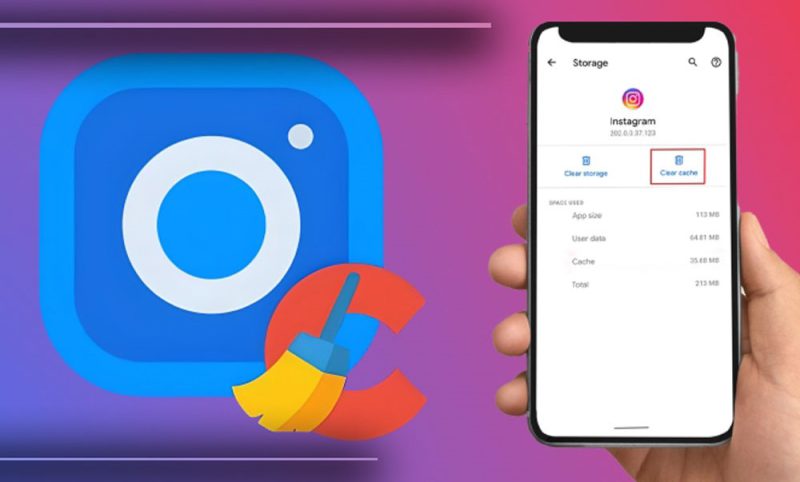
Clear Instagram Cache PC / Browser
- Go to the browser’s Settings.
- Open Privacy & Security.
- Select Clear browsing data.
- Check the Cached images and files and clear them.
This clears Instagram cache on the browser, resolving issues such as pages not loading or images not appearing. Keep in mind that clearing browser cache can temporarily slow down loading times, but it helps reduce web-related Instagram errors seen in both iPhone and Android experiences.
- Consideration: To further enhance privacy, you can delete Instagram search history directly within the app by going to your profile> tapping the three-line menu> navigating to Settings and Activity > then selecting Search history to clear your recent searches.
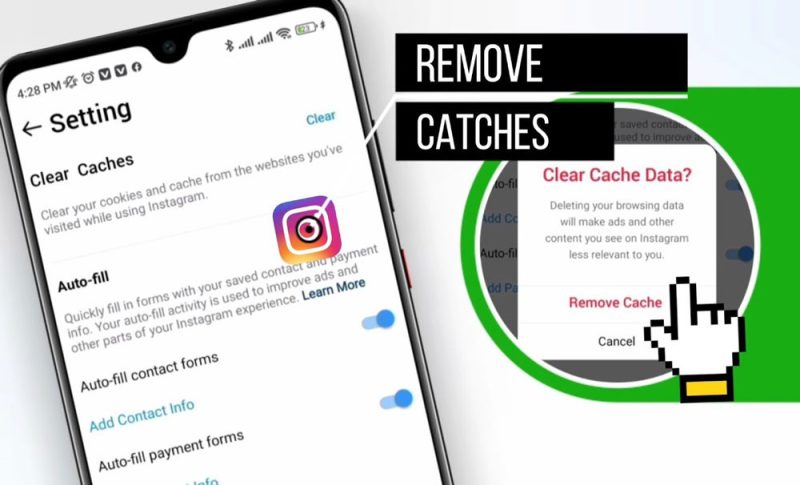
Finally
Now that you’ve learned “How to clear your Instagram cache?”, it’s time to take full control of your phone’s storage and finally break free from the slowdown. It’s a small step with a big impact, and you’ll feel the difference in your phone’s speed, smoothness, and extra space almost instantly.
The digital world is full of hidden tricks like this, and now you’re one of the smart ones who’s ahead of the game. So, what are you waiting for? Try it out and see the difference for yourself!
Let’s talk! Drop your answers in the comments about clearing the Instagram cache, and want more hacks to free up space and speed up your phone?
What is the Instagram cache, and why does it need clearing?
Instagram’s cache stores temporary files like images, videos, and search history to speed up loading. Over time, it can become bloated or corrupted, leading to slow performance, glitches, and large storage usage.
Is there a way to clear Instagram search history without clearing the full cache?
Yes. Go to Instagram, Your Profile, Menu (☰), Your Activity, Recent Searches, then tap Clear All to delete just your search history, without affecting the rest of the cache.
Will clearing the cache delete my photos, messages, account info, or drafts?
No, clearing the cache doesn’t affect your personal content like photos, messages, settings, or drafts. All of that remains safely stored on Instagram’s servers.
Will I be logged out after clearing the cache?
On Android, clearing the cache won’t log you out (but clearing data will). On iPhone, offloading the app usually keeps you logged in, but deleting and reinstalling the app does log you out, requiring a new login.
How often should I clear the Instagram cache?
There’s no strict rule, but it’s wise to clear it whenever you notice lags, crashes, low storage, or login/upload issues. For heavy users, doing it every few months is often sufficient.