Oninsta
Whether it’s taking up valuable storage, bombarding you with notifications, or disrupting your focus and privacy, Instagram can be difficult to remove.
If you’re serious about reclaiming control over your device and digital life, answering “Why can’t I uninstall Instagram from my phone?” is critical.
This guide highlights common challenges, reveals what’s happening behind the scenes, and offers clear, safe steps to regain control of your phone and habits. Read on before trying to delete Instagram again and find the practical solutions for the problem ofn’t being able to uninstall Instagram from your phone.
How to Fix Can’t Uninstall Instagram Issues? (Android & iPhone)
You may have faced challenges or can’t uninstall Instagram from your phone, especially on Samsung devices or iPhones with certain settings enabled. Here you’ll learn how to fully remove the app, or at least disable it for better control.
·Universal Solutions for Instagram App Removal (Android and iPhone)
These are the step-by-step instructions that work on both Android and iPhone devices. They cover common obstacles, effective troubleshooting tips, and practical methods to help you successfully erase Instagram and regain your digital wellbeing.
Restart Your Device to Fix Issues of Turning Off Instagram: A quick reboot can resolve many temporary issues if you can’t uninstall Instagram from your phone. Restarting your phone helps clear background processes, system cache, and glitches that may cause the cutting ties with Instagram to fail.
Force Quit Instagram Before Cleaning out: Make sure Instagram isn’t running in the background:
- Android: Swipe it away from the recent apps list.
- iPhone: Use the app switcher and swipe up to close the app.
This stops background activity that might interfere with deletion and helps if the app feels frozen or unresponsive.
Reinstall Instagram if Freeing Up Fails: Sometimes, corrupted files prevent the app from being stopped. Reinstall Instagram from the Google Play Store or Apple App Store, then ditch it right after. This clears up app corruption and resets permissions.
Update Your Operating System: Make sure your device is running the latest version of Android or iOS. OS updates often fix system-level bugs and app-crashing issues and remove barriers to erasing or managing apps like Instagram.
Manage Notifications and Screen Time for Digital Wellbeing: If you’re trying to quit or limit usage, reducing push notifications or using screen time limits can help prevent you from reinstalling the app and improve your focus and mental health.
·Android-Specific Tips to Uninstall Instagram (from Samsung Galaxy S22 Ultra and Other Devices)
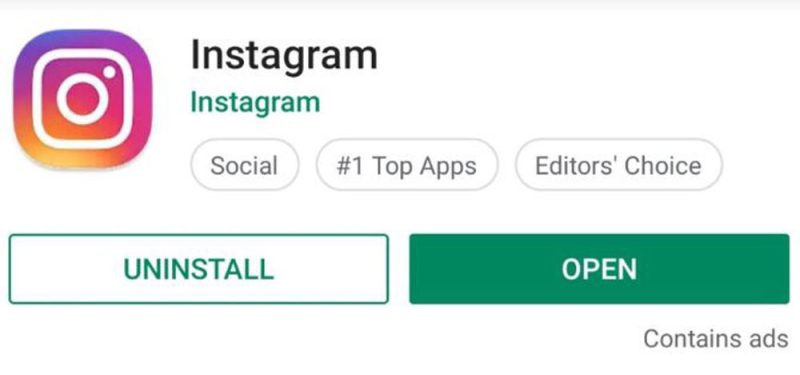
On many Android phones, the apps come pre-installed, and you can’t uninstall Instagram from your phone through normal settings. If you’re using a Samsung device or another with OEM bloatware, try these Android-specific fixes: Clear Instagram Cache and App Data: A corrupted cache can lead to wiping out errors. To fix: · Go to Settings > Apps > Instagram > Storage > Clear Cache & Clear Data· This resets the app state and often resolves issues like app freezing, unresponsive UI, or Instagram uninstall stuck errors. Revoke Instagram’s Device Administrator Privileges: Sometimes, Instagram has elevated permissions that prevent removal: · Go to Settings > Security > Device Administrators or Settings > Biometrics & Security > Device Admin Apps· Uncheck Instagram if it appears. This is essential for bypassing device-level restrictions. Disable Instagram When Uninstall Is Blocked: If the uninstall button is greyed out, turning off the app stops it from running: · Go to Settings > Apps > Instagram > Disable· This won’t delete the app, but it hides it from your launcher and prevents data usage, notifications, and background activity. Use ADB Commands to Withdraw Instagram Without Root: Advanced users can use Android Debug Bridge (ADB) to terminate Instagram for the current user: · adb shell pm uninstall -k –user 0 com. instagram.android· This doesn’t require root and effectively hides Instagram from your device. It’s a safe way to delete system or app bloatware without modifying system partitions. Root Your Android Device for Complete Removal: Rooting gives you full control and allows complete deletion of pre-installed apps. However, it voids warranties and can expose your device to security risks. It is only recommended for experienced users seeking full customization.
·iPhone-Specific Solutions for Uninstalling Instagram and Fixing App Removal Issues
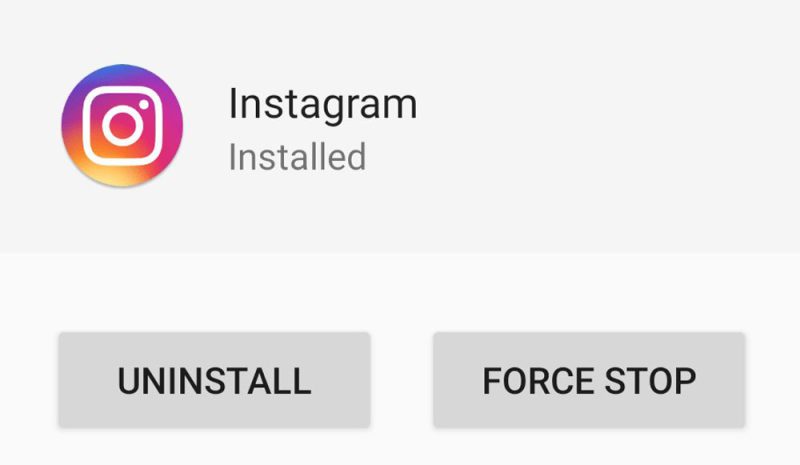
iOS users may encounter issues such as Instagram crashing, deletion errors, or content restrictions that prevent them from erasing the app.
Use these iPhone-specific steps to resolve the issue if you can’t uninstall Instagram from your phone:
Delete Instagram via iPhone Storage Settings: Navigate to:
- Settings > General > iPhone Storage > Instagram
- Choose ‘Offload App’ to remove the app while keeping your data, or tap ‘Delete App’ for a complete removal. This method works even when the app icon can’t be cleared from the home screen.
Check Screen Time Restrictions Blocking App Deletion: Go to:
- Settings > Screen Time > Content & Privacy Restrictions > iTunes & App Store Purchases > Deleting Apps
- Ensure it’s set to Allow. Restrictions here often block deletion without clear error messages.
Force Restart Your iPhone: A force restart helps resolve app removal bugs and UI freezing
- For newer iPhones: Press and release the Volume Up button, then press and release the Volume Down button, and then hold the Power button until the Apple logo appears.
- This clears temporary software issues that may cause Instagram to become unresponsive or undeletable.
Contact Apple Support for Persistent Problems: If you’ve tried everything and Instagram still won’t strip away, contact Apple Support for further assistance. There may be deeper issues with your iCloud account, restrictions profile, or system configuration.
Uninstalling the Instagram App vs. Deleting Your Account
A common misconception is confusing uninstalling Instagram from your phone with deleting your account. These are very different:
- Uninstalling the Instagram app removes the application from your device but keeps your profile, photos, and data active on Instagram’s servers.
- To permanently delete your Instagram account, you must do so through Instagram’s website using a browser. This removes all your data and profile, but the action is irreversible.
- Understanding this distinction helps users make informed decisions about their digital footprint and privacy.
Final Recommendations: If your goal is to remove all data, follow Instagram’s official account deletion process online. Uninstalling only frees up device space and reduces distractions.
Tips for a Successful Instagram Detox
In many cases, you can’t uninstall Instagram from your phone due to addictive design features, habitual checking, and fear of missing out (FOMO).
Successfully removing Instagram is often the first step toward a healthier digital lifestyle. To support your digital wellbeing:
- Set app limits and screen time controls to reduce temptation.
- Disable Instagram notifications to avoid constant distractions.
- Replace time spent on Instagram with hobbies, exercise, or social activities.
- Consider mental health apps or mindfulness practices to manage social media urges.
Final Notes
In summary, knowing the reasons why you can’t uninstall Instagram from your phone, you tackle common barriers on both Android and iPhone devices. The practical solutions provided here will guide you to safely wipe out or disable Instagram.
Combine these steps with healthy digital habits to regain control and improve your digital wellbeing.
Have you ever struggled to remove Instagram from your phone? What issues did you face? What tips or tricks have you discovered to reduce Instagram’s hold on your phone? Are you planning to delete your Instagram permanently? Please share your story with us about “Why can’t I uninstall Instagram from my phone?”Your feedback might be exactly what someone else needs to hear.
Why can’t you uninstall Instagram from your phone?
Instagram has restrictions that prevent cleaning it out.
How do I fully break up with Instagram?
This may require clearing app data or using special tools, depending on the device.
How to eliminate an app on Android that won’t get removed?
Apps that won’t eliminate often have admin rights, corrupted data, or system-level restrictions.
Why can’t I clear out Instagram from my iPhone?
Screen Time restrictions or app-related glitches can block clearing out.
What should I do if erasing Instagram fails?
Updating your phone’s operating system or contacting support for persistent issues can help resolve problems.